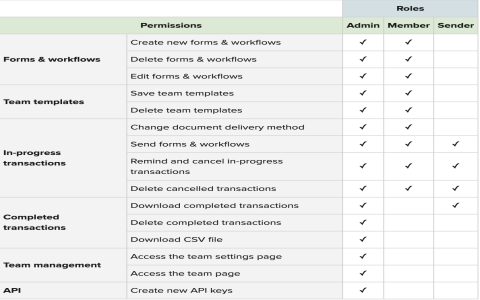
Adding Team Members: Reviewing User Permissions & Security
So, we needed to bring a couple more people onto the project this week. Nothing major, just expanding the outreach team, but whenever you add new users, you gotta go through the whole permissions rigmarole again. You think you’ve got it sorted, then BAM, someone can access something they definitely shouldn’t. Been there, done that, learned my lesson the hard way.
The first thing I did was sit down and map out exactly what these new folks needed to see and touch. They’re focused on content distribution and analytics reports. No need for them to be messing around with the core database configuration or the financial dashboards, right?
I started by logging into the main admin console. It’s always a clunky process, but necessary. First up was creating their user accounts. Standard stuff: name, email, strong temporary password which they’re forced to change immediately. That’s step one for basic security, never skip the forced password change.
Next was the tricky part: groups and roles. We use a system where permissions are inherited from roles assigned to groups, not directly to the user. It keeps things cleaner—in theory. For the outreach team, I looked at our existing roles. We have ‘Content Editors’, ‘Viewers’, and ‘Admins’. Neither of those fit perfectly. The Content Editors role had too much write access to the main CMS structure, and the Viewers role was too restricted—they needed access to specific report generation tools.
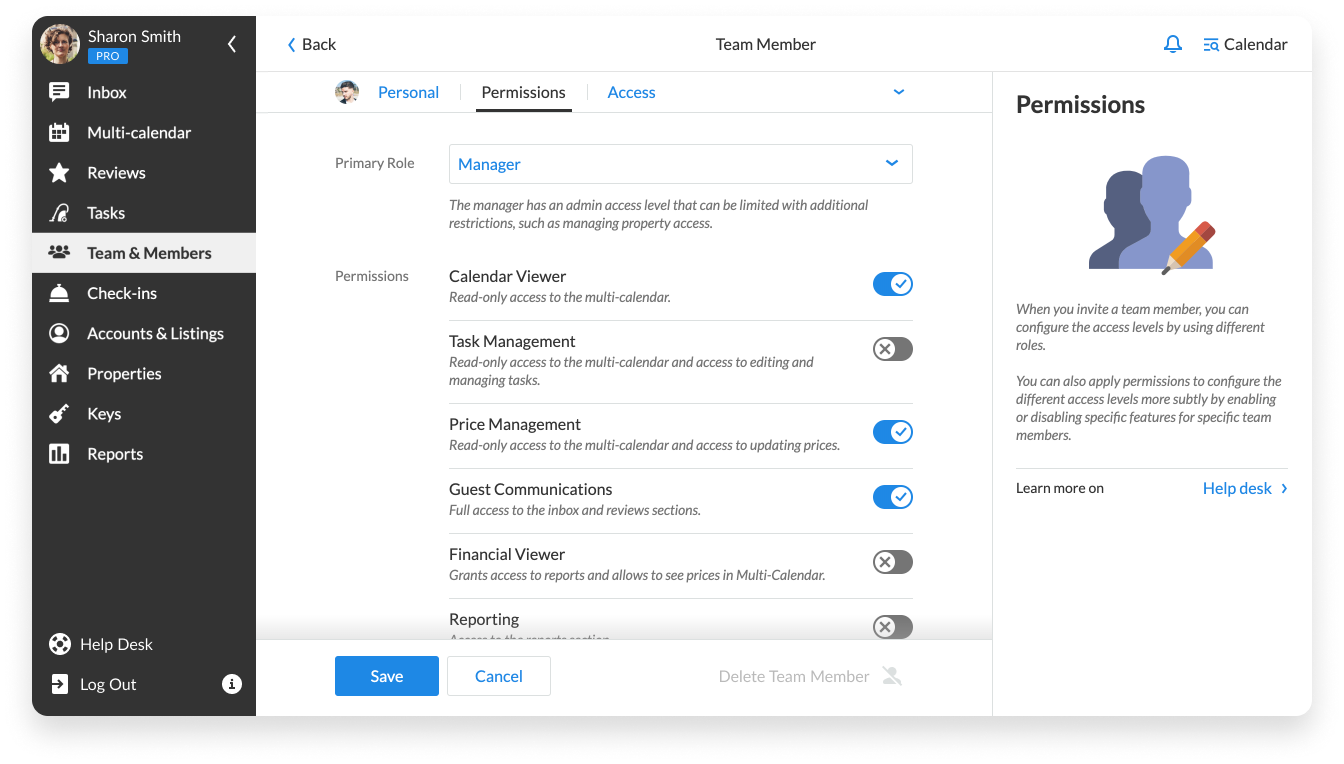
I ended up having to clone the ‘Viewers’ role and modify it slightly, calling it ‘Outreach Analysts’. This took some clicking around in the permissions matrix. Seriously, I spent maybe 45 minutes just checking boxes. I made sure to grant explicit read access to the specific folders where the outreach reports lived, and crucially, restricted write access on anything production-critical.
- Checked Read Access for Analytics Dashboard 1 & 2.
- Granted Execute permissions for Report Generator Script (but not edit rights).
- Explicitly denied access to the Configuration Settings panel.
After defining the new ‘Outreach Analysts’ role, I created a new team group, ‘Team Outreach’, and assigned that role to the group. Then, I added the two new team members to this ‘Team Outreach’ group. This way, if we hire four more people next month, it’s just a quick group addition, not a full role rebuild.
The biggest scare came when I was doing a quick test. You absolutely have to test the new permissions. I logged in as one of the new users (I have a test account for this exact reason) and navigated around. Everything looked fine until I accidentally clicked on the ‘API Keys’ section. Uh oh. It let me view the keys! Not good.
I immediately jumped back to the admin panel. Turns out, when I cloned the ‘Viewers’ role, a blanket ‘Read All Settings’ permission got copied over, and the API key dashboard falls under ‘Settings’. I had to go in and set an explicit DENY for that specific ‘API Key Management’ module within the new ‘Outreach Analysts’ role. Took another five minutes to find where that setting was buried, but I nailed it.
Once I confirmed they could access their required dashboards and couldn’t accidentally nuke the API keys or the database config, I sent out the welcome emails with their login details. It’s a process, but being careful about those permissions upfront saves a monumental headache down the line when someone inevitably clicks the wrong button.