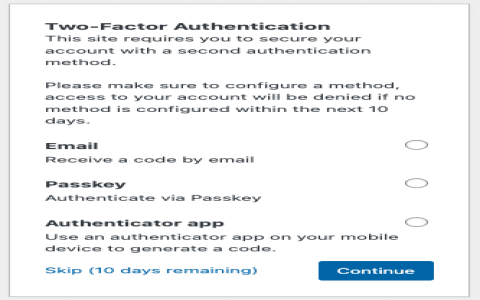
Alright folks, another week, another dive into making things work better. This time I was really digging into how we handle logins, specifically slapping on some robust Two-Factor Authentication, or 2FA. I wanted to move beyond the usual password and really make sure users were who they said they were. It sounds simple, but you know how these things go—the devil is in the details.
The Initial Grind: Mapping Out the Flow
First thing I did was sketch out the current login process. It was basic, you know, submit username/email, submit password, hit database, if match, great, session token, boom, logged in. Boring.
I decided to integrate 2FA using TOTP (Time-based One-Time Password), because it’s super common and pretty easy for users to pick up with apps like Google Authenticator or Authy. My goal wasn’t to reinvent the wheel, but to bolt a solid security feature onto an existing frame.
The new flow looked like this:
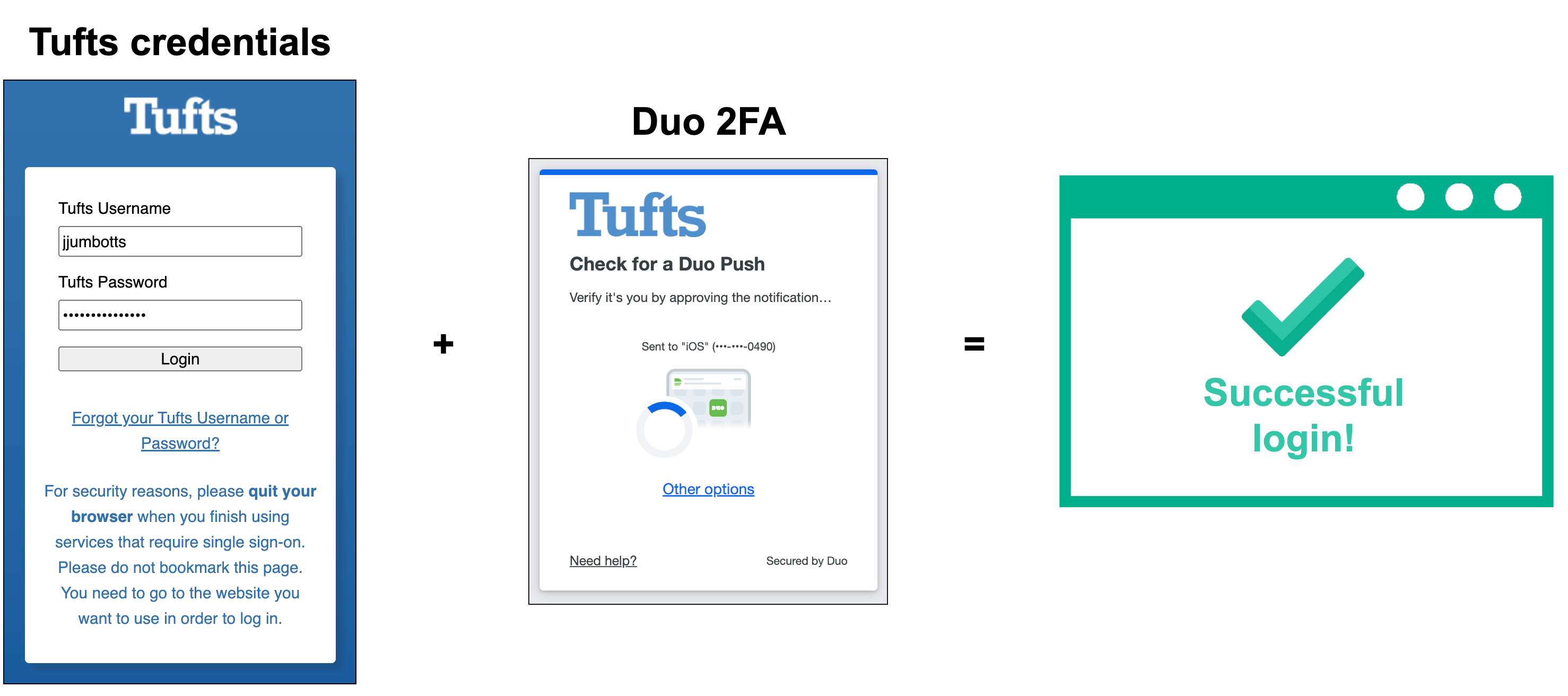
- User enters credentials.
- Server validates credentials (same as before).
- New Step: If validated, check if 2FA is enabled for this user.
- If 2FA is not enabled, regular login.
- If 2FA is enabled, redirect them to a secondary verification page, expecting the TOTP code.
- User enters TOTP code.
- Server validates TOTP code (the tricky bit).
- If validated, log the user in. If not, error message and possibly rate limit attempts.
Sounds easy, right? It was not.
Tackling the Backend Mess
I started on the backend, focusing on generating the initial secrets. When a user first opts into 2FA, they need a secret key. I used a simple library to handle the secret generation and then used that secret to create the QR code image that the user scans. I went with Base32 encoding for the secret, just standard practice.
Generating the secret was fine, but displaying the QR code required a quick hop to the frontend to make sure the data URI for the image rendered correctly. I had to ensure the link included the account name and issuer name—little details that make the scanning process smooth.
The real fun started with the verification step. I had to handle two things:
- When setting up 2FA, the user scans the QR and enters a code to confirm it works. This is where I persisted the secret to the database, flagged the account as 2FA enabled, but ONLY if the test code verified successfully.
- During actual login, accepting the user’s code. This involves using the stored secret and the current time to generate a valid code window and checking if the user’s input matches.
I ran into some clock drift issues immediately. My development environment server clock was slightly off from my phone’s clock where I was generating the codes. TOTP is usually tolerant of a small time window (like 30 seconds before and 30 seconds after), but even so, I had to ensure my server was syncing its time reliably. Switched to NTP synchronization and things stabilized quickly.
Frontend: Making It Usable
On the user interface side, I wanted the setup process to feel secure but not intimidating. I built out a dedicated settings page for 2FA enrollment. It showed the big QR code and a small input field below for the confirmation code. Crucially, I added clear instructions about downloading an authenticator app. You can’t assume everyone knows what an authenticator is.
The login verification page was minimalist: just the prompt for the 6-digit code. I added a small timer display using JavaScript to show the user that codes expire, just to manage expectations. I hate when a user inputs an old code and gets confused.
I also spent time on session management. When a user successfully authenticates with the password, I store a temporary flag in the session—say, awaiting_2fa. This ensures that even if they refresh the page, they are still locked into the 2FA verification step and can’t accidentally skip it. Once 2FA is successful, I destroy that temporary flag and issue the main authentication token.
What I Learned Grinding This Out
The biggest takeaway wasn’t the code itself, but managing the state transitions. You have the normal login state, the setup state (with confirmation), and the active login verification state. Each one needs its own error handling and session management.
Another thing I made sure to implement was backup codes. If a user loses their phone, they are locked out. So, upon successful 2FA setup, I generated a batch of one-time use recovery codes, encrypted them slightly, and forced the user to download or print them before fully enabling 2FA. This is non-negotiable for a modern system. I made sure these recovery codes were invalidated immediately after use, of course.
It was a solid few days of pushing commits and testing edge cases—especially invalid codes, rate limiting (crucial to prevent brute-forcing the 2FA token), and dealing with time skew. But now, hitting the login page feels genuinely more secure. Done and dusted.